Transfer books over Wi-Fi. Download from your own cloud.
Transfer books between your phone, computer and Kindle over Wi-Fi, or download ebooks from your own object storage and open them in the native Kindle reader.
On the same Wi-Fi, scan with a phone or enter the connection code in a computer browser. Upload batches of ebooks, or search and download books already on Kindle.
Works independently, without a cloud account
Up to 50 books per batch; multi-book exports use ZIP
Duplicate filenames are saved separately; originals stay intact
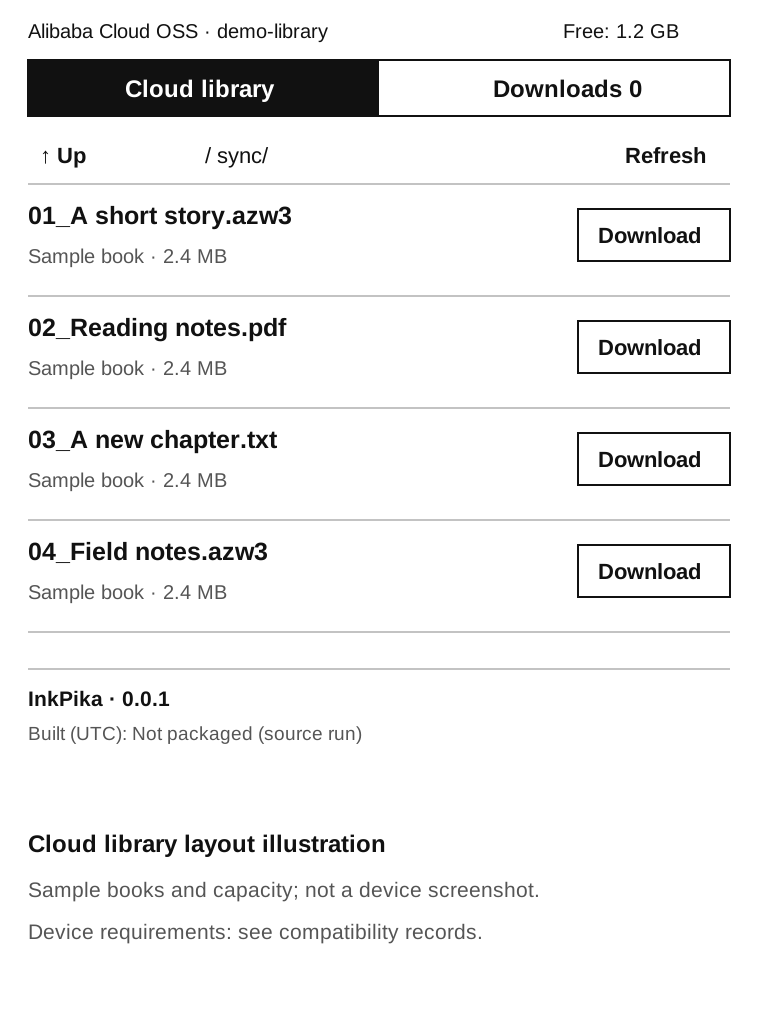
Connect your cloud library. Select Start sync in KUAL to check and download your reading list, or browse folders in the graphical library and choose books individually.
KUAL syncs sync/ without selecting each book
Browse configured folders and track download progress
Sync starts on request; cloud deletion does not delete local books
Open Settings on Kindle and scan its QR code with your phone. Enter cloud credentials, folder and format settings without typing on the small Kindle screen.
Pair from a computer browser too
Saved keys are masked; leave fields blank to keep them
Settings are validated and applied to the cloud service as needed
Connect to your own object storage. Choose books in the library or sync through KUAL.
Connect directly to familiar public clouds.
Supports Alibaba Cloud OSS, QingStor, Amazon S3, Volcengine TOS, Microsoft Azure Blob, IBM Cloud Object Storage, Google Cloud Storage, Tencent COS, Cloudflare R2, Backblaze B2 and DigitalOcean Spaces. Connect your own S3 library; R2 / B2 free allowances may suit small libraries.
Choose the platform or Custom S3 / NAS under Storage platform, then enter the bucket, region and credentials. TOS, IBM, Google and Tencent use S3-compatible interfaces. Azure uses native Blob APIs with a container, account name and Account Key. The Azure account key grants broad permissions; this client performs only reads. R2 region is auto; enter its HTTPS S3 API Endpoint from the console.
Connect a NAS through S3.
Choose Custom S3 / NAS and enter its HTTPS S3 endpoint, bucket, signing region and read-only credentials, typically with path-style addressing. Upload books to an object storage bucket; an ordinary shared folder does not automatically become an S3 library.
SeaweedFS: provides an S3 interface and supports single-node deployment.
MinIO / AIStor: AIStor Free is free for a single node under a commercial license. The original MinIO open-source edition is no longer maintained; avoid it for new deployments.
These are software examples; specific versions have not been tested together. Kindle must be able to reach the NAS. S3 provides no NAT traversal and does not include WebDAV. Upload with NAS tools or an external S3 client.
Optional SOCKS5. HTTPS verification stays on.
All object storage supports socks5://HOST:PORT or socks5h://USER:PASSWORD@HOST:PORT; URL-encode special characters. Destination names are resolved by the proxy. Proxy failures return errors with no direct fallback. Saved proxies are hidden; blank keeps them and an explicit checkbox clears them. Only object storage uses the proxy; wireless transfer and settings do not. SOCKS5 authentication itself is unencrypted; object storage still uses HTTPS.
For a NAS with a private CA, copy a PEM CA certificate to Kindle and set Additional CA certificate path. Certificate and hostname verification remain enabled. Read the full connection guide.
Implementation and test records: InkPika includes OSS, QingStor, S3 and Azure Blob adapters, SOCKS5 and additional CA support. Feature and device test results are maintained in the validation record. See Feature and device validation record.
One 5 MB book per month: what does a year cost?
Starting empty, upload and retain one 5 MB book (5,000,000 bytes) at the beginning of each month and download each once: about 60 MB stored at year end, 0.39 GB-month accumulated storage and 0.06 GB downloads. Assume 100 LIST and 200 GET/HEAD requests per month, including book downloads, plus 12 PUTs a year. External tools upload; the Kindle client is read-only. Standard storage and approximate decimal GB are used.
Unverified assumptions: storage $0.020/GB-month; Class A $0.005/1,000, Class B $0.0004/1,000; egress $0.12/GB; no region/destination-specific free allowance deducted
$5/month minimum, including 250 GiB storage and 1 TiB egress
$60
About CNY 432
These are Codex estimates for reference, not provider quotes or cost guarantees. Uses the stated verification status, assumptions and constant annual rates. Actual prices, regions, allowances, rounding and minimum billing follow provider rules. Exchange rate is illustrative: $1 ≈ CNY 7.2. Free allowances are assumed unused by other workloads. Excludes temporary credits, tax, proxies, domains, NAS hardware/power, add-ons, retries, repeat downloads and extra console requests. Small GB/GiB and month-length differences are ignored. Sub-minimum amounts represent usage value, not necessarily a charge; $0 does not mean free forever or no payment method required.
Pricing checked 2026-11-09: all three TOS rates and Azure storage/request rates were reviewed against official sources. Azure egress and IBM / Google / Tencent rates remain the explicitly listed budget assumptions, not fully verified current prices. These five estimates deduct no free allowance, trial credits or package discounts. Bills depend on region, download destination and account rules. Annual requests: 1,212 writes/LIST and 2,400 reads. Azure rates come from Retail Prices API. Official price sources are linked in the table. OSS request and egress rates reference the billing example。AWS free egress allowance is shared across the account and excludes regions such as AWS China. Incremental storage on an existing NAS is usually negligible; hardware and operations are separate costs.
Organize your reading list. Take it with one KUAL action.
For a regular reading list. Subfolders are supported and verified completed books are skipped; failed syncs preserve old copies.
Your bucket / sync/ / to-read.azw3
Leave the cloud folder scope blank or set it to sync/. You start sync manually; the service does not start at boot.
01
Prepare your reading list in the cloud
Using the cloud console, an authorized agent or an API, upload ebooks to the bucket-root sync/ folder and its subfolders.
02
Select Start sync
Start from KUAL → InkPika to check and download missing or updated files.
03
Check progress and start reading
Refresh View status for progress; All books shows the sync list. Once saved and indexed, open books from the Kindle system library in the native reader.
Try the actual interface
Try syncing, inspecting the book list and managing services in the Kindle KUAL menu. All operations use local samples.
An agent on your computer can help install it. Or download the package and copy it manually over USB.
Check compatibility before installing
Currently requires jailbreak and KUAL
Engineering baseline: PW2 / 5.12.2.2
InkPika targets Kindle devices across generations. Review the requirements, implemented measures and remaining work for your model before installation.
Let an AI assistant on your computer handle installation. Copy the prompt below so it can follow the project docs, prepare files, install to Kindle and check the result.
Prepare the connection
Install a local-file-capable agent such as Codex, Qoder or Workbuddy, and ensure SSH key login to Kindle already works. For connection setup, see USBNetwork Hack connection guide ↗.
Connect Kindle to your computer and open its drive. From the extracted extensions folder, copy inkpika into the Kindle drive's extensions folder. Create extensions first if it does not exist.
Folder location as seen on your computerKindle drive → extensions → inkpika
Copy the complete inkpika folder without nesting a second folder of the same name. Safely eject Kindle when done.
03
Open KUAL and send your first book
Safely eject USB and connect Kindle to Wi-Fi. Open KUAL → InkPika and choose Wireless transfer [web] to begin. Before using cloud storage, enter credentials in Settings [web].
Which Kindles are supported? Is jailbreak required?
InkPika targets Kindle devices across generations and requires jailbreak and KUAL. PW2 / firmware 5.12.2.2 is the engineering baseline. For device requirements, implemented measures and remaining work, see the compatibility documentation. The project includes no jailbreak tools.
Do I need a public-cloud account?
Wireless transfer needs no cloud account: connect your phone, computer and Kindle to the same Wi-Fi. Cloud library and sync require your own object storage bucket: OSS, QingStor, AWS S3, TOS, Azure Blob, IBM, Google, Tencent, R2, B2, Spaces or an S3 service on your NAS. The project includes no book sources.
How do I upload books? Is sync scheduled?
Upload through a cloud console, an agent with appropriate tools and authorization, or an API. InkPika only lists, reads and downloads. Select Start sync in KUAL to check and download missing or updated books from sync/ ; it is not a scheduled job. The graphical library browses the configured scope for on-demand downloads.
Do I need a different reader?
No. Books are saved locally and appear in the native reader after system indexing. InkPika handles transfer and downloads; readability depends on file format, DRM and native device support.
Which ebook formats are supported?
Default transfer formats are AZW, AZW3, MOBI, PRC, PDF and TXT. Adjust the allowlist in Settings; it applies to wireless transfer, cloud library and KUAL sync. Actual reading support depends on Kindle. The project does not convert formats or handle DRM.
Will downloads or sync overwrite or delete my books?
Wireless transfers number duplicate filenames; manual cloud downloads never overwrite existing books. Sync updates only registered copies after integrity and remote-version checks, preserving old files on failure. Cloud deletion never deletes local books.
Why has my book not appeared on the home screen?
Kindle still needs to index a saved file. Return to Downloaded or All items and wait, checking that the format is supported. Keep Kindle awake during transfer; sleep can disconnect Wi-Fi. Saved to Kindle means the file is saved, not that indexing is finished.
Is it free? What has been tested?
InkPika is free under the MIT license. Object storage may incur storage, request and traffic fees. Feature and device test results are maintained separately. See the device validation record.
Do services stay running afterward?
Leaving a web window does not stop its service. In KUAL → InkPika → Background services, stop wireless transfer, cloud library and settings independently. None starts at boot by default. Use paired transfer and settings on a trusted LAN.
YOUR BOOKS. YOUR KINDLE.
Transfer books over Wi-Fi. Download from your own cloud.
Transfer books between your phone, computer and Kindle over Wi-Fi, or download ebooks from your own object storage and open them in the native Kindle reader.